Network Printing
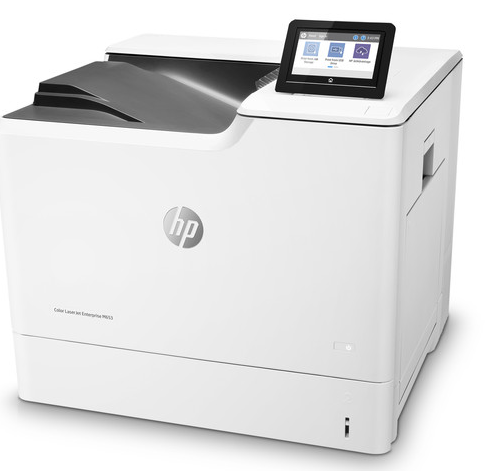
The HP Color LaserJet Enterprise M653 [CMP-01663] can be installed as a network printer.
The M653 can only be installed on Image v6.0.13 and above. This limits the use of the network printer to System SW v7.1 and above.
- Install the HP Color Laser Jet Enterprise M653 Printer.
- Configure the Firewall to use a network printer.
- This will require a Static IP address on the customer network. DHCP reservation or Static.
- Setup HP Color Laser Jet Enterprise M653 on Panther.
Install the M653
- Unbox the network printer.
- Connect the network printer to a power source other than the UPS.
- IF on the Customer Network, connect a Cat5e ethernet cable to the printer and into the customer network.
- Ensure the network port is open on the customer site.
- IF on the Hologic Network, connect a CAT5e ethernet cable to the printer and connect the other end to the switch.
Configure the Firewall to use a Network Printer

|
Note— There are two methods of configuring the firewall. |
- Program the Cisco 5505 or Cisco 5506 using Firewall Wizard 6.0.1 or above.
- Within the Wizard select Yes for Network printing
- Insert the IP address of the network printer listed in the Site Assessment Form
Manually configure IPv4 TCP/IP parameters on the Printer
- From the Home screen on the Printer control panel, open the Settings menu.
- Navigate to: Networking >> Ethernet >> TCP/IP >> IPV 4 Setting >> Conƭig Method.
- Select Manual, and then select the Save.
- Open the Manual Settings menu.
- Select the IP Address, Subnet Mask, or Default Gateway option.
- Using the numeric keyboard, enter the correct digits for the field, and then press or touch the OK button.
Repeat the process for each field, and then select Save.
Determine the MAC address of the Network printer
|
|
Note— This section is only needed if the customer will require a MAC address to allow the printer on the customer network. |
- From the home screen of the printer select the Info icon in the top right corner.
- Within the info page select, Ethernet.
- Within the Ethernet page, scroll down and the MAC Address is displayed.
Setup HP Color Laser Jet Enterprise M653 on Panther
- From the Panther Shield select, command prompt.
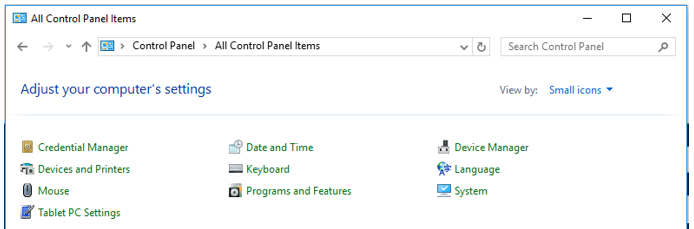
- Type start control and click enter. The control panel will appear.
- From the control panel, select Devices and Printers.
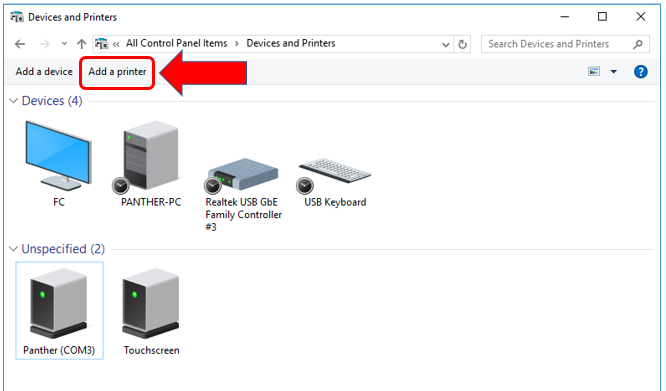
- Within Device and Printers, click add a printer.
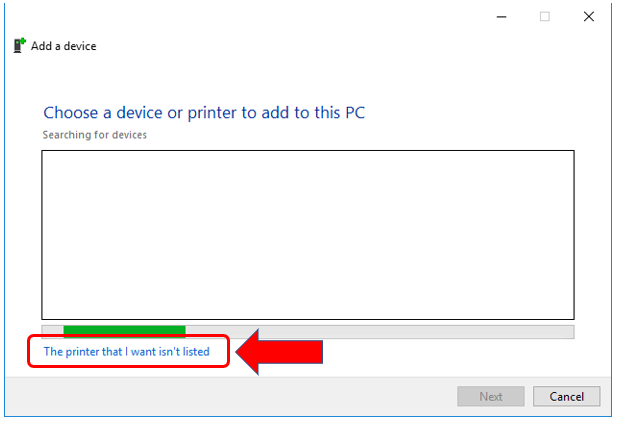
- Click on, “The printer that I want isn’t listed”.
- Select, “Add a printer using a TCP/IP address or hostname”
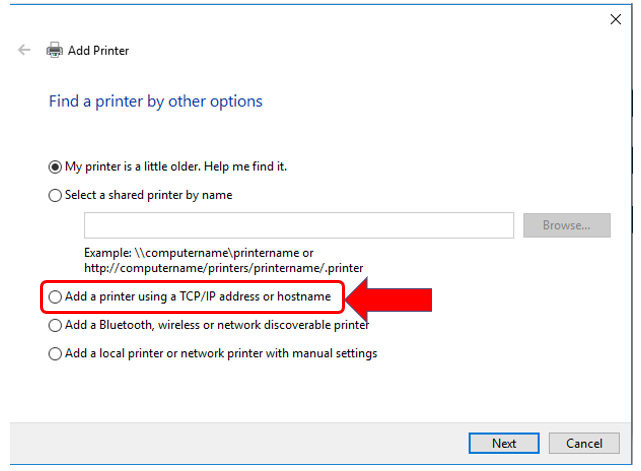
- Insert the IP address of the network printer listed in the Site Assessment Form.
The Port name with auto populate.
Uncheck the Query the printer automatically check box.
Select Next.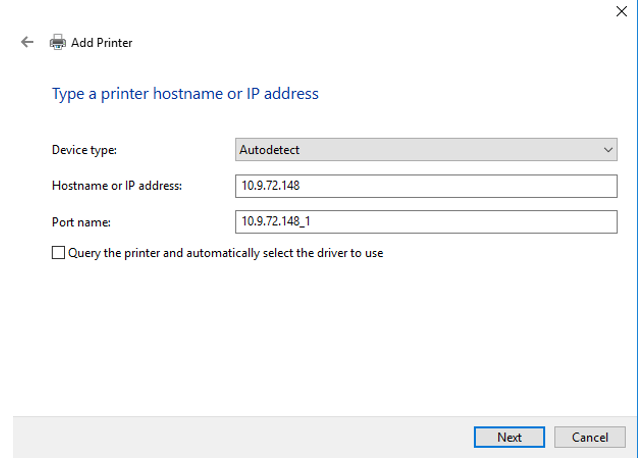
- In the Manufacturer Pane select HP.
Then scroll down in the Printers pane and select HP Color LaserJet M652 M653 PCL-6(V4) printer.
Then click Next.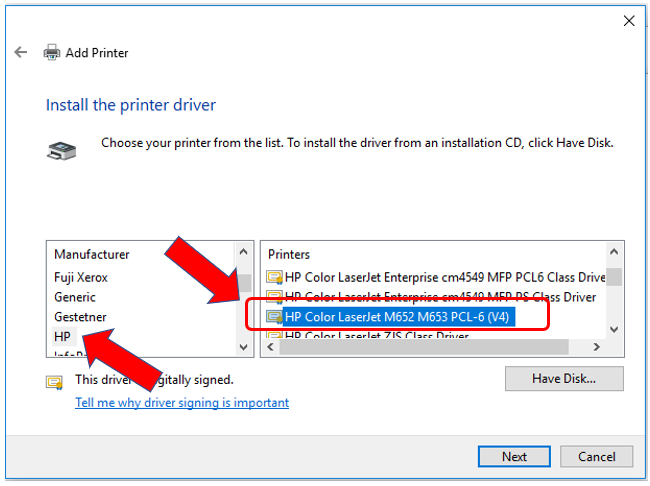
- Select the "Use the driver that is currently installed (recommended)" radio button.
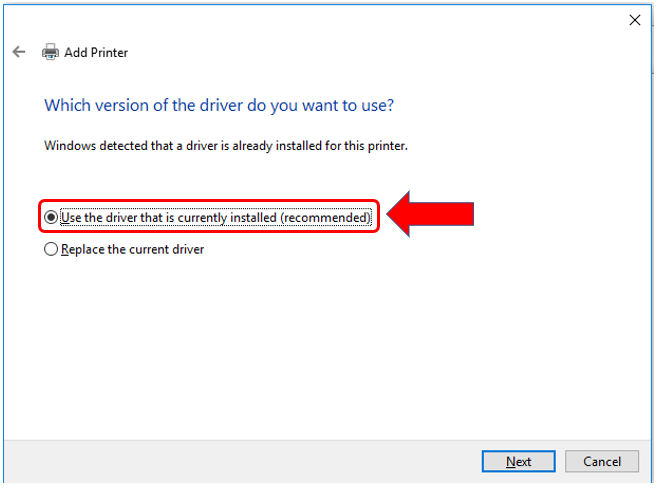
- Input a Printer Name of your choosing and select Next.
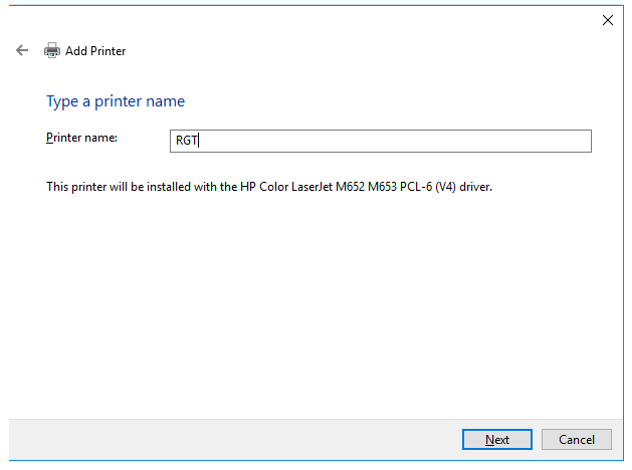
- Allow Printer to Install and select Next.
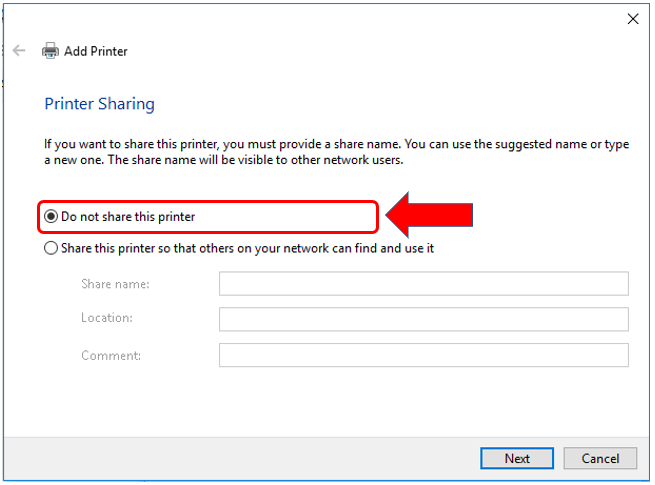
- From the Printer Sharing Page select, "Do not share this printer" radio button. Click Next.
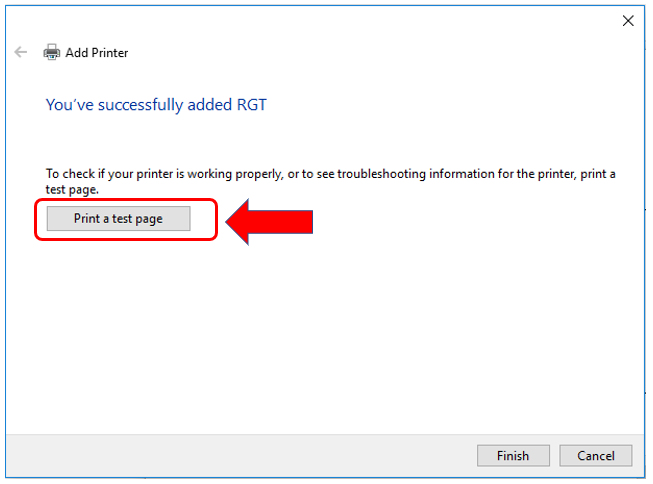
- Verify a print can be sent. Select Print a test page. Verify the print can be sent. Then select finish.
Configure a Printer within Panther Main
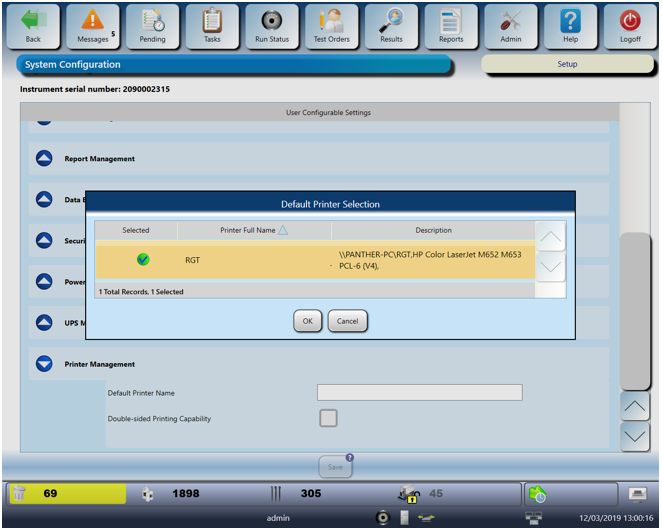
- Within Panther Main navigate to Admin> System Configuration>Printer Management.
- Select the empty text box title default printer name.
- When the dialog box appears, Select the printer in which was setup in the previous step.
- Select OK.
 button at the top of the page to send feedback, comments, or change requests.